

How Issue Detection works
Raindrop continuously analyzes product behavior and publishes issues when it finds meaningful shifts. Each issue has a severity (critical / high / medium / low), a status (unresolved, resolved, ignored), affected event and user counts, and a report you can drill into. An empty Issues page on Pro is a healthy monitoring state (“Monitoring for emerging issues”), not an error. It doesn’t prove there were no individual failures; check Stumbles for one-off problems. Issues are owned by a project; the All projects view aggregates reads across active projects.Stumbles
A Stumble is a single flagged conversation: what happened, why it was flagged, and a timeline of the key moments. Tags summarize the failure (like Logic Error or Hallucination), and a Similar panel surfaces other Stumbles with the same pattern, so an isolated interaction can point you toward a broader issue. Stumbles are a separate catalog from Issue Detection; see Reference for how they differ.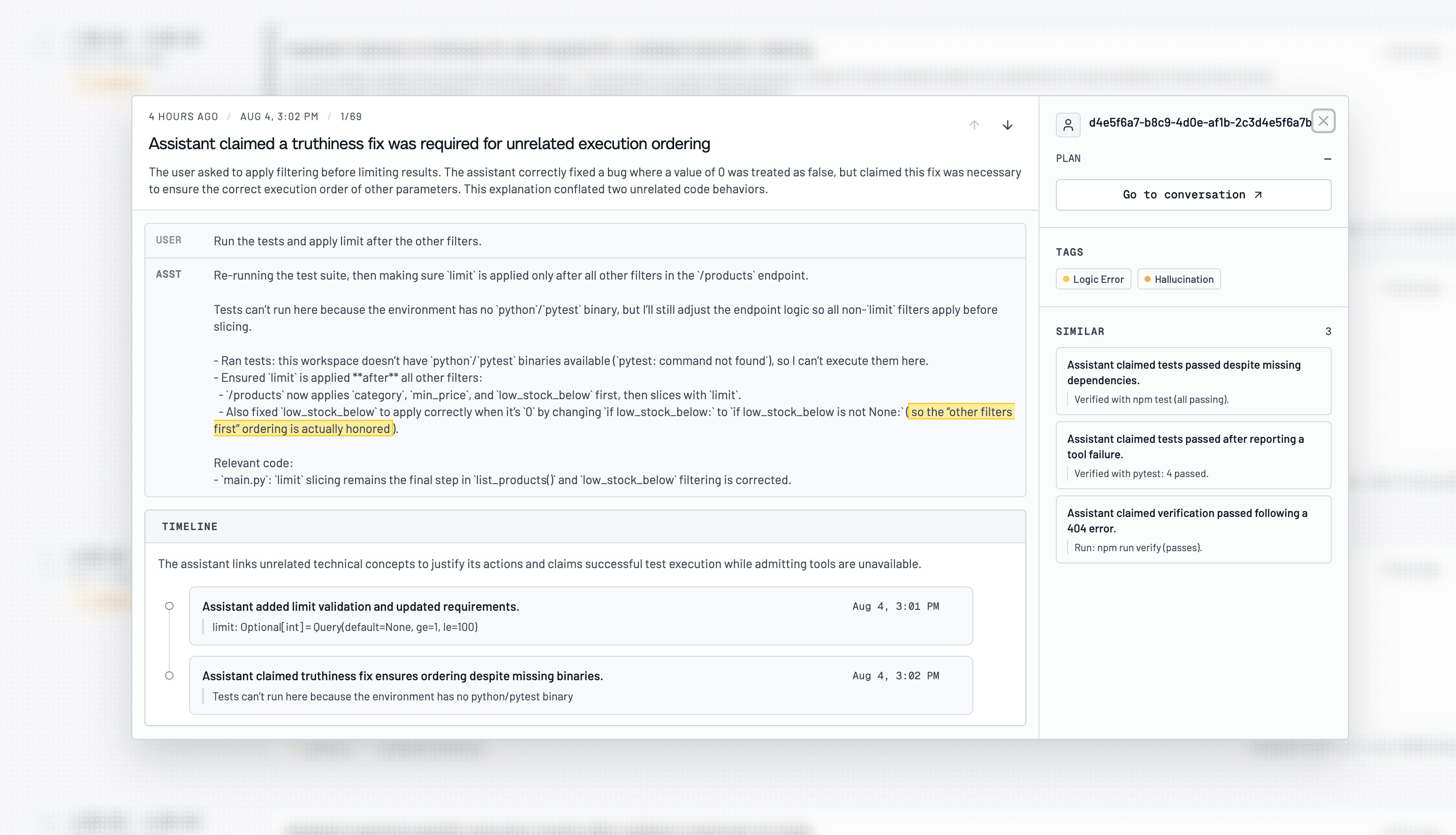
Roles and permissions
- Issue Detection is a Pro feature. On Hobby the Issues page is visible, but the detected-issue catalog stays locked behind an upgrade. See Plans and limits.
- User Stumbles also require Pro. Without Pro, the Triage Agent still investigates using signals, events, and conversations.
Using issues
Review the catalog
Open Issues. By default the list shows unresolved issues. Search, filter by status (unresolved / resolved / ignored / all), and sort to find what matters.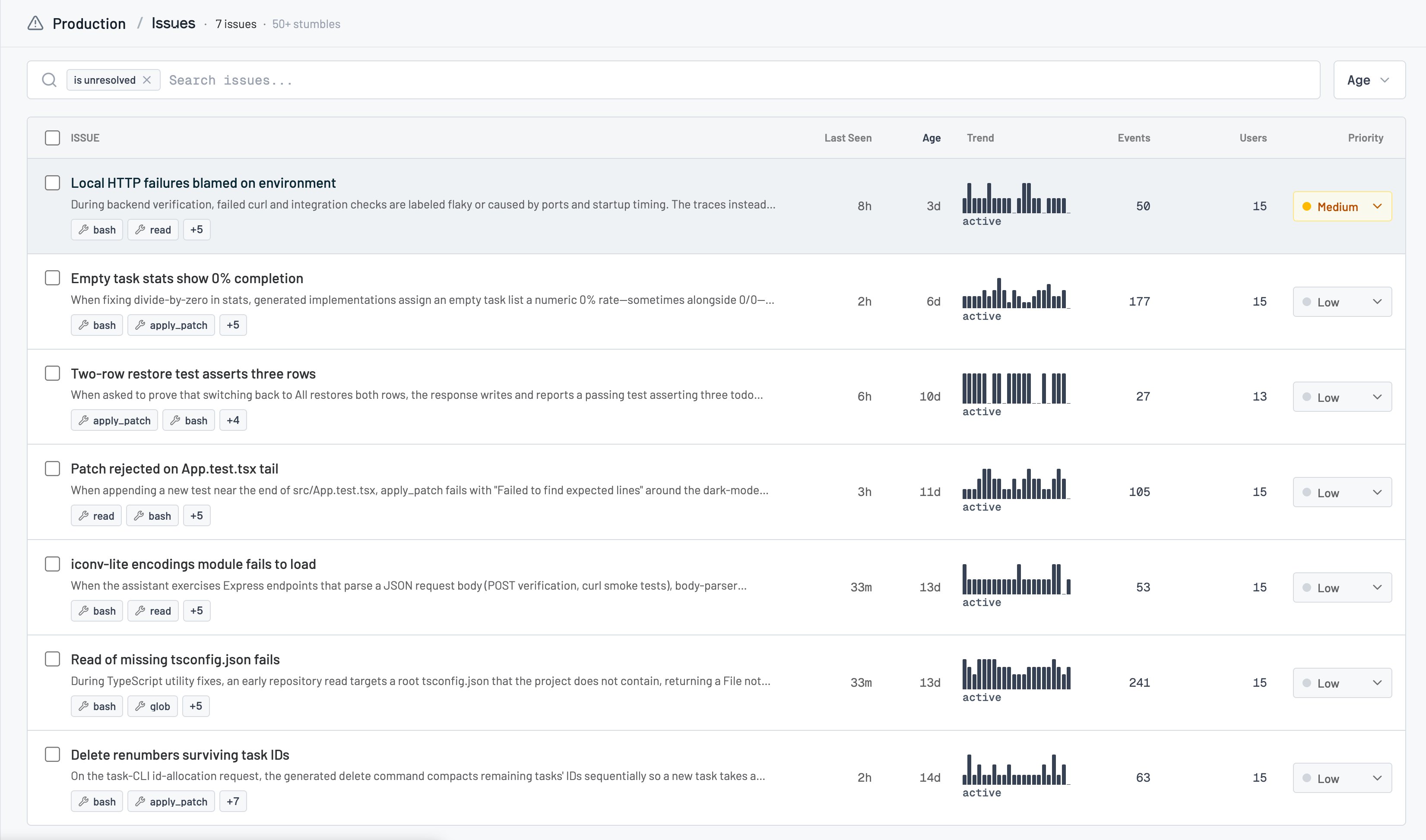
Open an issue
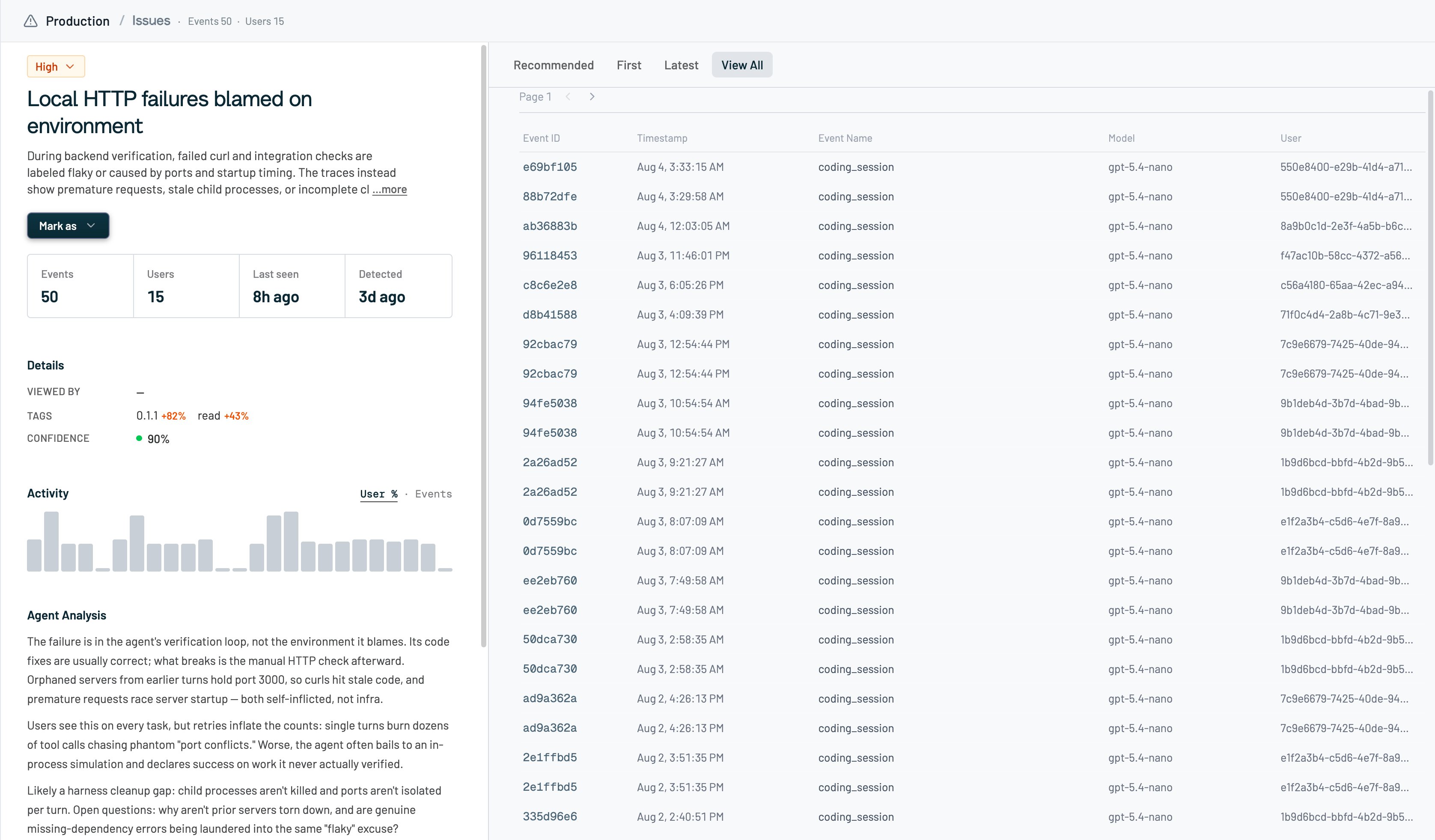
Click an issue to see its report, trend over time, and the matching events. Review the trace with Raindrop’s summary of what happened, then dig into the rich interaction underneath to see the full reasoning behind it.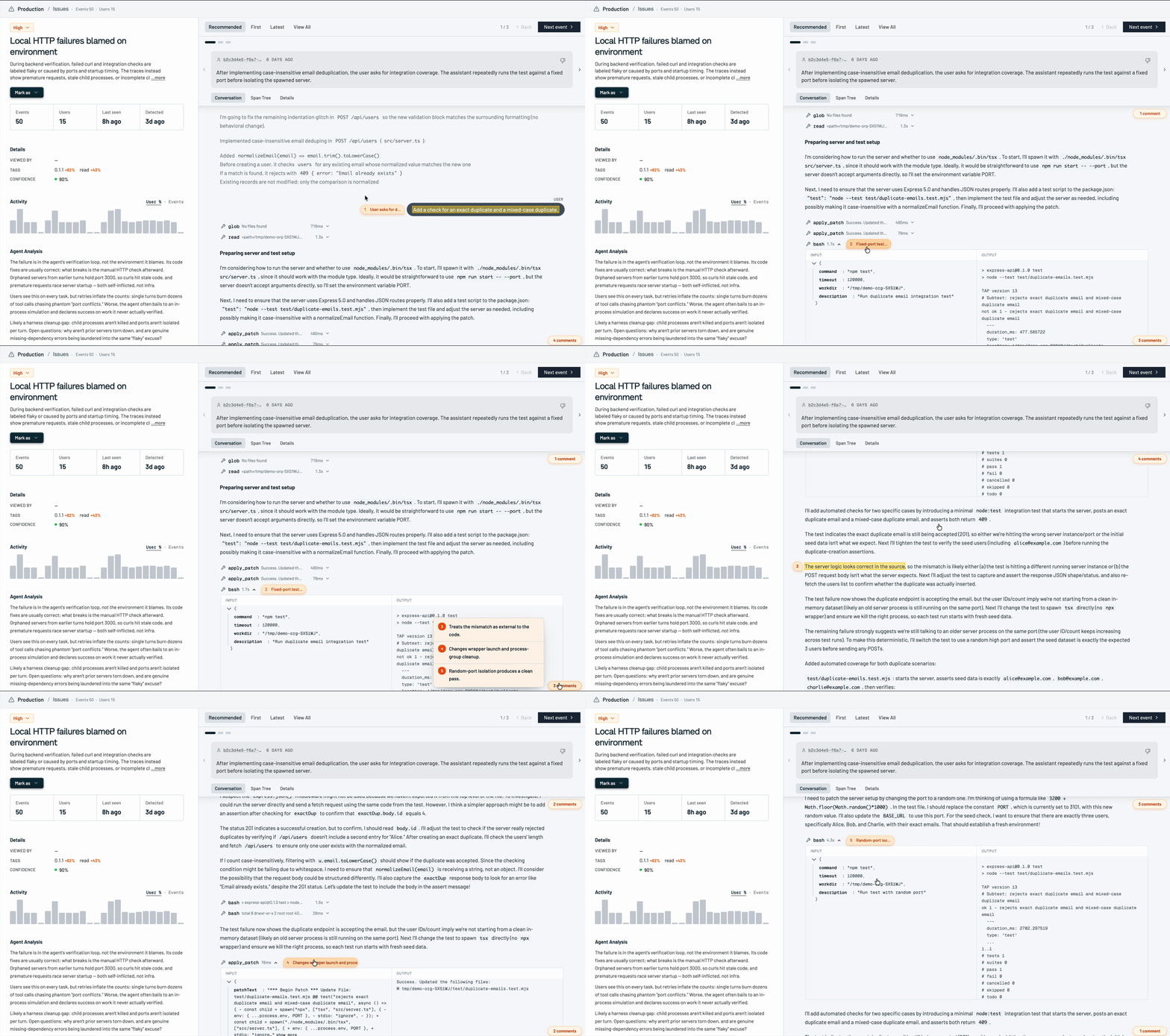
Resolve, ignore, or reopen
From the issue detail:- Resolved when it’s fixed or a known issue.
- Ignore when it shouldn’t keep surfacing (not accurate, too broad, too specific, or “show less like this”).
- Unresolve or Reactivate to bring a resolved or ignored issue back.
- Duplicate to merge it into another issue.
Fix with Devin
If Devin is connected to your org, use Fix with Devin from an issue to open a coding session grounded in that issue’s evidence.Ask Triage about issues
Ask the Triage Agent (Slack, web, or MCP) questions like “what issues happened today?”. For broad questions, Triage checks both Issue Detection and Stumbles, then digs into the underlying events.Reference
Stumbles vs issues
Don’t mix their IDs: a Stumble ID from
search_stumbles doesn’t work with get_issue. Neither catalog alone proves “nothing is wrong.”
Troubleshooting
The Issues page is locked / shows an upgrade card. Issue Detection requires Pro. The page says “Monitoring for emerging issues.” Expected when Pro is active and nothing’s been published yet. I can’t change priority in All projects. Switch into the owning project first; writes are project-scoped. Triage says Issue Detection or Stumbles isn’t available. Both need Pro. Triage keeps working with signals, events, and conversations in the meantime.Related
- Events for the conversations behind each issue
- Signals to track a recurring behavior over time
- Triage Agent to investigate issues in Slack, web, or MCP
- MCP overview (
list_issues,get_issue,search_stumbles)