> ## Documentation Index
> Fetch the complete documentation index at: https://raindrop.ai/docs/llms.txt
> Use this file to discover all available pages before exploring further.
# Users
> Browse the people behind your events, filter by traits and signals, and open any user's conversation history.
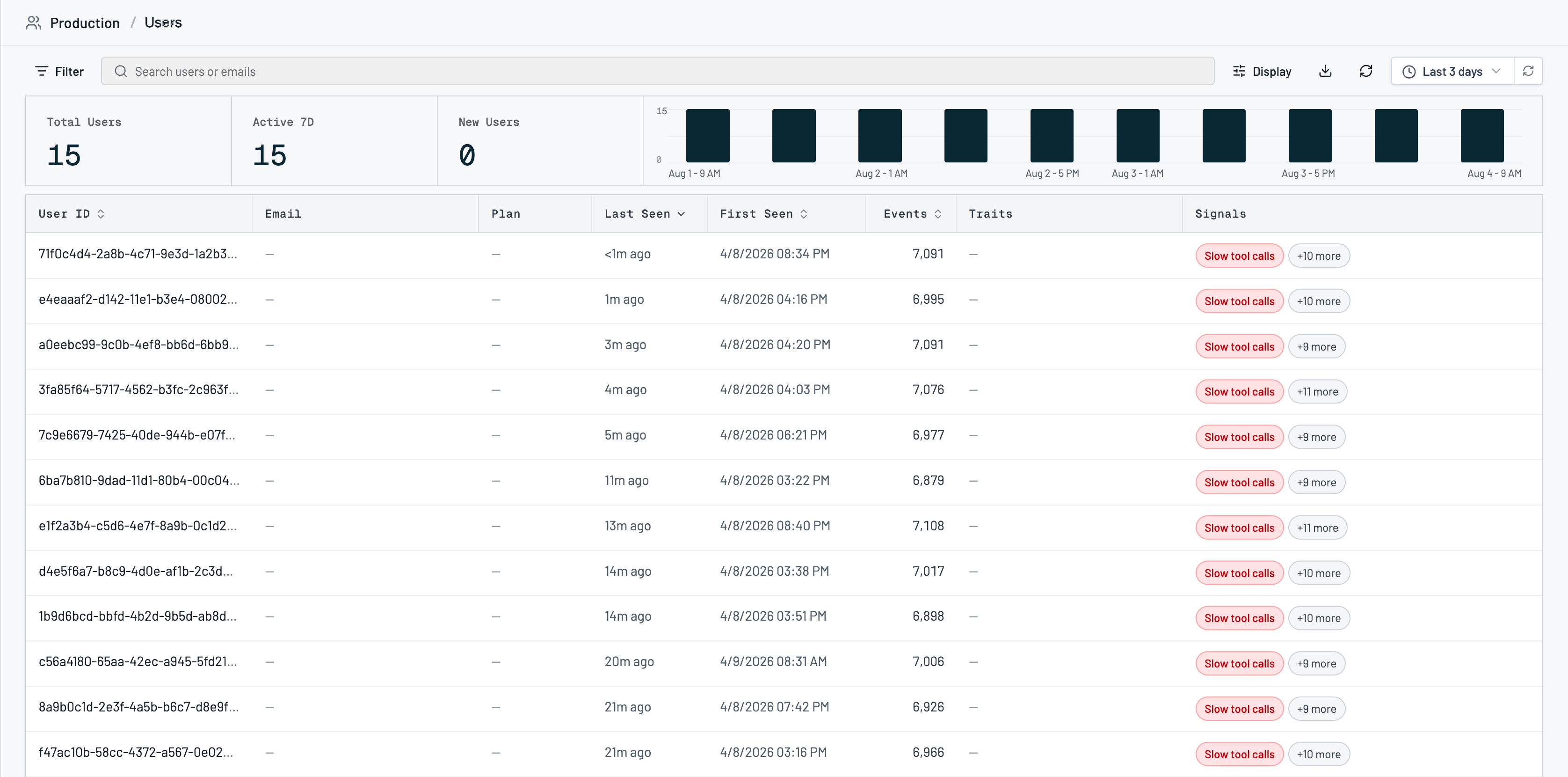
A user in Raindrop is anyone who appears in your events, keyed by `user_id`. The Users page catalogs those people with activity stats, traits, and the signals they've hit.
## How users work
Users are built from your events. When an event includes `userId` / `user_id`, Raindrop adds that person to the Users catalog for the project the event landed in. Attach traits (email, plan, name) with `identify`, and they show up as filterable columns.
The page respects the selected [project](/docs/platform/projects). In **All projects** you see one row per `(project, user_id)`; opening a user drills into that project's scope.
## Using users
### Browse and filter
Open [Users](https://app.raindrop.ai/users) to see active-user trends and the full table. Search by user ID or email, then filter by plan, first-seen, traits, signals, event name, or date range.
 ### Open a user's events
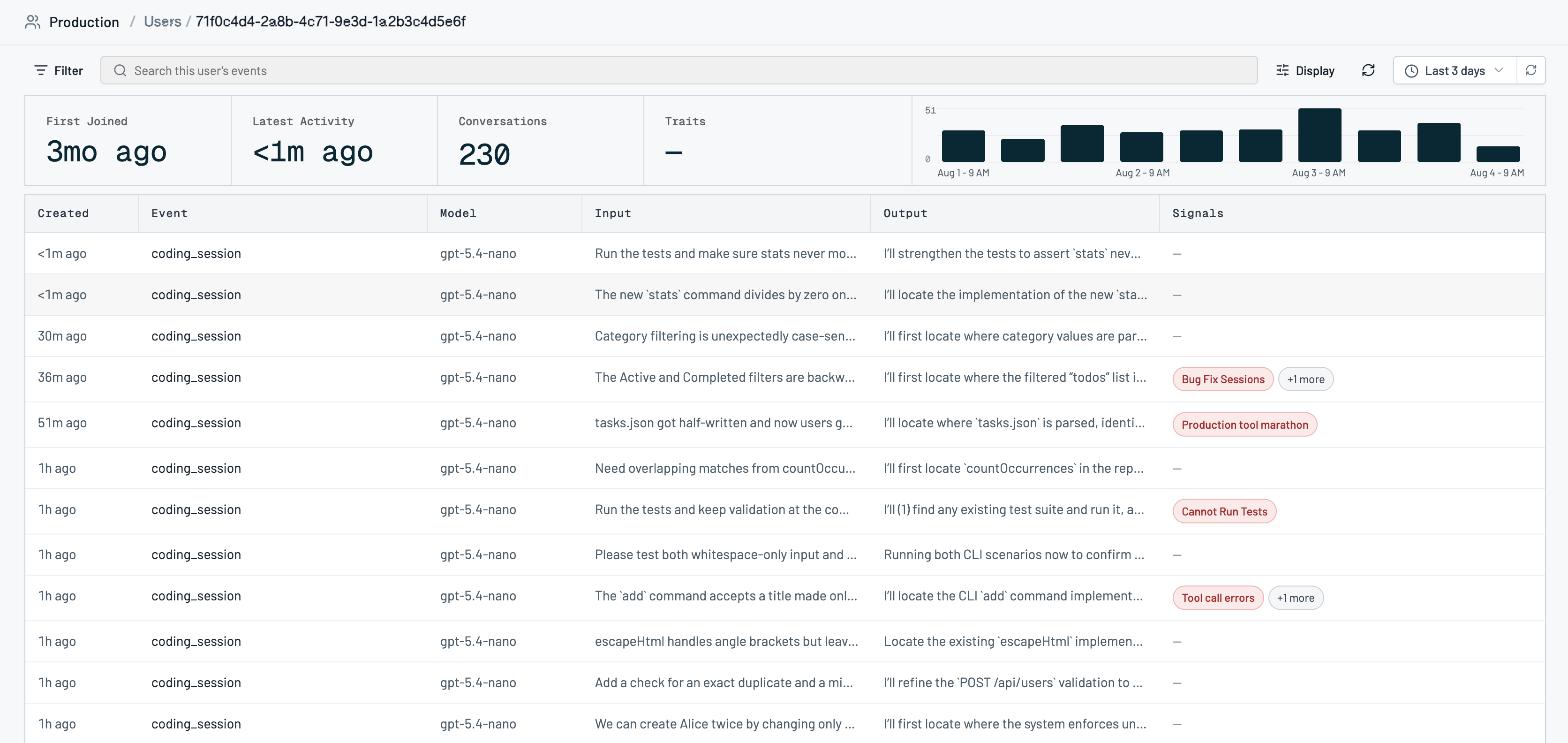
Click a row to open that user's event feed. Search and filter their interactions the same way you do on the [Events](/docs/platform/events) page, and jump into any conversation.
### Open a user's events
Click a row to open that user's event feed. Search and filter their interactions the same way you do on the [Events](/docs/platform/events) page, and jump into any conversation.
 ### Attach traits with identify
Send traits from your app so the Users table stays useful. Use stable `user_id` values and traits like `email`, `name`, and `plan` (`free` / `paid` / `trial`):
```python theme={null}
raindrop.identify(
user_id="user_123",
traits={
"email": "alex@acme.com",
"name": "Alex Rivera",
"plan": "paid",
},
)
```
See [Python SDK](/docs/sdk/python), [Browser SDK](/docs/sdk/browser#identify-users), or [HTTP API — Identify User](/docs/sdk/http-api#identify-user).
### Hide internal or test users
Use **Settings → Filters → User Exclusions** to hide matching users from the catalog.
### Export
On paid plans, export the matching users as CSV from the Users page.
## Troubleshooting
**I only see a few users on the free tier.** Free orgs get a short preview. Upgrade to Startup or Pro for the full catalog and CSV export.
**A user is missing traits.** Traits from `identify` apply immediately. Traits that only arrive on later track events can lag until those events are ingested. Re-send `identify` if a trait should already be there.
**The same person shows up twice in All projects.** Expected: each project keeps its own row for a given `user_id`.
## Related
* [Events](/docs/platform/events) for the interactions behind each user
* [Signals](/docs/platform/signals) to filter users by behaviors they've hit
* [Projects](/docs/platform/projects) for how users are scoped
* [MCP overview](/docs/mcp/overview) (`list_users`, `get_user`) to query users from your coding agent
### Attach traits with identify
Send traits from your app so the Users table stays useful. Use stable `user_id` values and traits like `email`, `name`, and `plan` (`free` / `paid` / `trial`):
```python theme={null}
raindrop.identify(
user_id="user_123",
traits={
"email": "alex@acme.com",
"name": "Alex Rivera",
"plan": "paid",
},
)
```
See [Python SDK](/docs/sdk/python), [Browser SDK](/docs/sdk/browser#identify-users), or [HTTP API — Identify User](/docs/sdk/http-api#identify-user).
### Hide internal or test users
Use **Settings → Filters → User Exclusions** to hide matching users from the catalog.
### Export
On paid plans, export the matching users as CSV from the Users page.
## Troubleshooting
**I only see a few users on the free tier.** Free orgs get a short preview. Upgrade to Startup or Pro for the full catalog and CSV export.
**A user is missing traits.** Traits from `identify` apply immediately. Traits that only arrive on later track events can lag until those events are ingested. Re-send `identify` if a trait should already be there.
**The same person shows up twice in All projects.** Expected: each project keeps its own row for a given `user_id`.
## Related
* [Events](/docs/platform/events) for the interactions behind each user
* [Signals](/docs/platform/signals) to filter users by behaviors they've hit
* [Projects](/docs/platform/projects) for how users are scoped
* [MCP overview](/docs/mcp/overview) (`list_users`, `get_user`) to query users from your coding agent